
Frequently Asked Questions (FAQ)
How does the app work?
FeeBee lets you add extra charges, called fees, to your products. A fee can be a fixed amount or a percentage. To make this possible, FeeBee creates hidden products in Shopify. Depending on the fee type, these products are bundled with the original product or grouped under a special product called “Fees.” The correct total is then shown to your customer at checkout.
What do I need to use the app?
Your store must support Checkout Extensibility. You also need to activate the FeeBee Script in your theme under Online Store → Themes → Customize → App embeds. This script is required for storefront behavior such as cart display helpers, product-page fee notices, and adding the parent “Fees” product for Bundle with fees.
How do I add a new fee?
Go to the Fees section in the FeeBee app and click Create Fee. Give the fee a name, choose whether it is a fixed amount or a percentage, pick the fee type (bundle with product or bundle with fees), and select which products, collections, or markets it should apply to. Save your changes to finish.
Can I apply fees at the variant level?
Yes. When creating a fee in FeeBee, you can select specific variants of a product instead of applying the fee to the whole product. This is useful if, for example, only certain sizes, colors, or packaging options should carry an extra charge.
Please note that when you apply a fee to a collection, the fee applies at the product level, not the variant level. This is because Shopify collections are based on products rather than individual variants.
How are fees added to the cart automatically?
For Bundle with product, FeeBee uses Shopify’s Cart Transformation to attach the fee product to the base product as a bundle. For Bundle with fees, the FeeBee Script first adds the Fees product to the cart. The Cart Transformation then expands this into the correct fee line items.
Can I set percentage fees?
Yes. Percentage fees are calculated from the product price. For example, if you set a 5% fee on a €100 product, the fee will be €5.
Does FeeBee calculate percentage fees on the discounted amount?
No. Due to a Shopify limitation, percentage fees are always calculated from the original price, not the discounted price.
Workaround: If your percentage fee should follow discounts, set the fee type to Bundle with product. This way the discount also reduces the fee, so totals reflect the discounted price correctly.
Example:
- Product = $100
- 10% discount → $90
- 30% duty = $27
- Total = $117
Does FeeBee work with discounts?
Yes, but the behavior depends on the fee type.
Bundle with product:
With Bundle with product, Shopify applies discounts to both the product and the fee. If you want discounts to only reduce the product price while leaving the fee untouched, FeeBee provides a special discount type in Shopify called “Discount Ignoring Fees.”
To create this discount:
- In your Shopify Admin, go to Discounts and click Create discount.
- In the Select discount type dialog, choose FeeBee → Discount Ignoring Fees.
- Decide whether you want to create a discount code or an automatic discount.
- In the discount setup, configure the percentage or fixed discount amount.
- Select which products or all products the discount should apply to.
- Save the discount.
This type of discount ensures the fee created by FeeBee is not reduced. Only the base product is discounted.
Bundle with fees
With Bundle with fees, discounts already exclude fees automatically, so you do not need to create this special discount type.
Can I select a group of products for a fee?
Yes. When creating a fee in FeeBee, you can decide whether it should apply to all products, to specific products or variants, or to entire collections.
Applying a fee to collections is often the easiest way to manage fees for a whole category of products, such as all beverages or all electronics. When you select a collection, the fee is automatically applied to every product in that collection, including new products you add later.
Please note that for collection-based fees to work, the collection must be published on the Online Store channel in Shopify. Collections that are not published will not trigger the fee.
If you only need the fee on a few specific items, you can instead select individual products or even product variants. This gives you flexibility depending on how your catalog is structured.
Can fee products be deleted?
No. Fee products must stay in Shopify for the app to work. For Bundle with fees, the parent “Fees” product is required and cannot be deleted. You may change its title or image, but price and logic must always be managed in FeeBee.
How do I change the amount of a fee?
Open the FeeBee app, edit the fee, and update the amount there. Do not change the price directly in Shopify, as this can cause problems at checkout.
Can I pause a fee without deleting it?
Yes. Set the fee to "Paused" in FeeBee. The fee will remain saved but will not apply until reactivated.
Does FeeBee work with accelerated or express checkout?
Yes. Bundle with product works with accelerated checkout from the product page and with express checkout methods like Shop Pay or PayPal at checkout. Bundle with fees also supports product-page accelerated checkout when the button submits the standard Shopify product form, because FeeBee adds the parent “Fees” product before checkout starts. If a custom button bypasses the product form entirely, test it before going live.
Can fees be displayed as their own line item?
Yes. Selecting Bundle with fees shows each fee as a line item under the special “Fees” product. Shopify does not allow fees to appear as a separate row in the subtotal or summary area, so displaying them as line items is the only supported option.
How are fee products fulfilled?
Fee products appear in fulfillment like normal items. To avoid handling them manually, we recommend setting up auto-fulfillment for fee line items using Shopify Flow. You can target them by tag and mark them as fulfilled automatically, while leaving your regular products untouched.
See How to Auto Fulfill FeeBee Line Items for the Shopify Flow template and setup steps.
How are fees displayed in the cart and checkout?
Both the cart and the checkout always show the correct total including all fees. The difference lies in how the individual fees are displayed:
Checkout
In the checkout, customers always see each fee listed individually. The way it appears depends on the fee type you selected when creating the fee:
-
Bundle with product
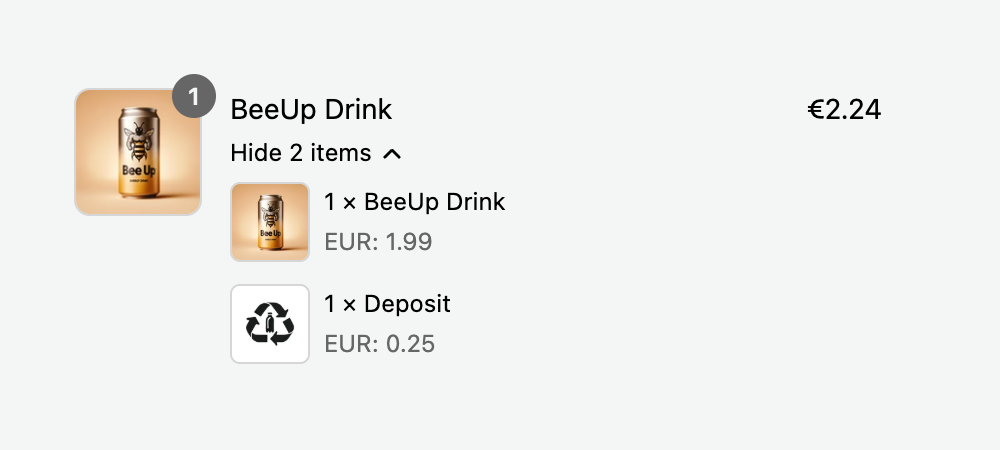
The fee is bundled directly with the main product. In checkout, the product expands to show both the base product and the fee as sub-items. Customers see a single combined price for the product, but the breakdown makes it clear that part of the total is the fee.
-
Bundle with fees
The fee is grouped under the special “Fees” product. In checkout, the base product appears normally, and the separate “Fees” product expands to list the individual fee items. Customers can clearly see that the fees are separate from the product price.

Cart
In the cart, how fees are displayed depends on your theme:
- With Bundle with product, most themes only display the combined product price, without showing the breakdown.
- With Bundle with fees, most themes display only the global “Fees” product, without listing the sub-fees.
To make fees more transparent in the cart, FeeBee offers display settings that can add line item properties under the product to show the individual fee amounts. Alternatively, your theme can be customized to display the breakdown in the same way it appears in checkout.
A fee is not appearing. What should I check?
If a fee is missing, make sure the FeeBee Script is active in your theme. Check that the fee is set to Active in the app and that its rules match the current product, collection, market, or customer tag. For Bundle with fees, also check that the parent “Fees” product is present in the cart, draft order, or POS cart. Some themes may not show fees clearly in the cart, so also test the checkout page. If the fee still does not appear, contact support for assistance.
Can customers see that a fee applies before adding to the cart?
Yes. You can add the optional Fee Notice block to your product pages. This shows a short message that an extra fee applies. Customers will always see the full price including fees once items are in the cart, but depending on your theme and fee type, they may not always see a separate breakdown in the cart.
Does FeeBee work with multiple currencies and markets?
Yes. FeeBee supports Shopify Markets. Fixed fees are automatically converted into the customer’s checkout currency by Shopify. Percentage fees scale naturally with the product price in that currency. You can also restrict each fee to one or more specific markets, so you can charge fees only in certain countries or regions.
How are taxes applied to fees?
FeeBee fees follow the same tax settings as the fee products created in Shopify. If your store charges VAT or sales tax on products, the same rules apply to the associated fee. This means that if a product is taxable, the fee attached to it will also be taxed in the same way.
Does FeeBee work with subscriptions?
Currently, Shopify does not support cart transformations for subscription products. Because of this limitation, FeeBee fees cannot be applied to subscription checkouts. All other one-time product sales are supported.
How do fees work with draft orders and POS?
For Bundle with product, fees are automatically included in draft orders and POS.
For Bundle with fees, add the base product “Fees” manually in draft orders. In Shopify POS, the POS Fees tile automatically adds or removes the base product when the POS cart changes. Tapping the tile toggles Bundle with fees charges enabled or disabled for the current POS cart. Shopify’s Cart Transformation will then expand the base product into the correct fee line items.
Could FeeBee conflict with my theme?
FeeBee works with most themes out of the box, but because it relies on the FeeBee Script to display fee details, conflicts may appear if your theme uses heavily customized cart code. If you notice unusual cart behavior, first make sure the FeeBee Script is active, then test in a fresh theme without customizations. Contact our support team if you need help adjusting FeeBee to work with your theme.
Can I report on fees separately in Shopify Analytics?
Yes. Because FeeBee creates actual products for each fee, they appear in Shopify reports just like regular products. You can identify them using their product title, SKU, or product type. This allows you to track how much revenue comes from fees compared to your regular products.
What happens if I refund an order with a fee?
Since fees are added as products, they appear as line items in the order. When issuing a refund, you can choose whether to refund the fee along with the product or leave it as non-refunded. This gives you flexibility to decide whether fees should be refundable in your business.
Can I apply multiple fees to the same product?
Yes. FeeBee allows you to create more than one fee that applies to a product. If multiple fees are active and the conditions are met, they will all be added to the cart. For example, you could apply both a recycling fee and a handling fee to the same product.
Will customers always see that a fee is applied?
Customers will always see the final total including fees in the cart and at checkout. Whether they see a breakdown in the cart depends on your theme and the display options you enable in FeeBee. Some carts only show the combined bundle price, while others can show the fee listed under the product or as its own line.
In checkout, each individual fee is always listed, either as part of the bundled product (for Bundle with product) or under the special “Fees” product (for Bundle with fees). This ensures full transparency before the customer completes the purchase.
Can I hide fee products from my online store catalog?
Yes. FeeBee automatically creates the products it needs in Shopify as unlisted products so customers cannot normally find or buy them directly from your storefront catalog. You should keep these products hidden, as they are only used in the background to apply fees.
The only exception is the global “Fees” base product, which is required for Bundle with fees. This product must remain available on the online store channel, otherwise the fees cannot be added correctly at checkout. You may still change its title or image to better match your store, but it should never be unpublished or deleted.
Do fees sync with third-party apps?
Yes. Because FeeBee creates real products in Shopify, the fees appear in orders just like normal products. This means they are included in order exports and are usually recognized by connected apps such as shipping solutions, ERPs, or accounting systems. If you want to filter them out, you can use the product type, SKU, or tags that FeeBee applies to fee products.
What happens if I duplicate a product or collection?
If you duplicate a product or collection in Shopify, existing fees do not automatically apply to the duplicate. Fees are applied based on the product or collection you originally selected in FeeBee. To include the new duplicate, you will need to update the fee in FeeBee and add the duplicate product or collection.
Do fees work with Shopify gift cards?
No. Fees cannot be applied when a customer is buying a Shopify gift card product. This is a technical limitation in Shopify, as gift card products are handled differently at checkout and do not support cart transformations. Fees will still apply normally when a customer pays for other products using a gift card balance.
What happens if I uninstall FeeBee?
If you uninstall FeeBee, the app will no longer apply fees in your store. The hidden fee products that FeeBee created in Shopify will remain in your product list, but they will not function without the app. You can delete these products manually if you no longer plan to use FeeBee. If you reinstall the app later, new fee products will be created.
Do I need to re-activate the FeeBee Script if I change my theme?
Yes. The FeeBee Script is a theme app embed, which means it is enabled per theme. If you publish a new theme or duplicate your existing one, activate the FeeBee Script again in the theme editor. Without it, FeeBee’s storefront behavior will not work correctly in that theme.
Do fee products affect inventory tracking?
No. Fee products created by FeeBee do not track inventory and will not reduce stock levels in Shopify. They are treated as non-stocked products, so they will not interfere with your normal product inventory or inventory-based reports.
Can I restrict fees to certain customers?
Yes. FeeBee includes Fee Conditions that let you control which customers should see a fee. Conditions are based on customer tags in Shopify:
- Customer tag includes: the fee applies only if the customer has the specified tag.
- Customer tag does NOT include: the fee applies only if the customer does not have the tag. For guest checkouts, this condition is always considered true.
You can combine multiple conditions, and all of them must be met for the fee to apply. This allows you to create rules such as “apply the fee only to wholesale customers” or “exclude VIP customers from this charge.”
How do I keep custom inputs when using FeeBee?
If your products collect extra details such as engravings, dates, or gift messages, Shopify may remove them when bundles are created. FeeBee can keep up to three custom fields per product. You can set these in the app under Settings by entering the exact property names from your orders.
If you need more than three fields, you can combine multiple values into one property. We can provide a helper script for this. Just contact our support.
Do I need to publish collections or fee products?
Yes. For FeeBee to work correctly, the collections you target with a fee must be published on the Online Store channel in Shopify. If a collection is not published, the fee will not apply to its products.
Fee products created by FeeBee are handled automatically. Regular fee products should normally stay hidden from your storefront catalog so customers cannot buy them directly. The global “Fees” base product is the exception: it is required for Bundle with fees and must remain available on the Online Store channel. FeeBee also publishes it to the Point of Sale channel when that publication is available.