
Showing Fee Notices on Product Pages
FeeBee allows you to add fees to specific products or collections, and these fees are applied automatically during checkout. To help customers understand that a fee will be added, FeeBee provides visual notices that can be displayed directly on the product detail page (PDP). These notices are added using Shopify’s Theme Editor and can be fully customized to match your store’s design and tone of voice.
This guide explains how to add and customize Fee Notice blocks on your product pages.
Types of Fee Notice Blocks
FeeBee provides two app blocks that you can use on your product pages:
Fee Notice
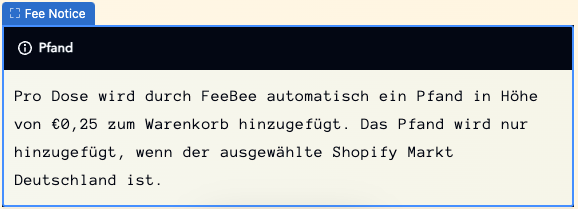
This is the full visual version of the notice. It includes:
- A customizable header
- A customizable body text
You can edit both the title and the message directly in the Theme Editor. The placeholder :amount is automatically replaced with the actual fee amount when the product is displayed.
The block includes styling options such as:
- Border radius
- Text colors
- Header background color
- Block background color
- Margins and spacing
The block is styled using BEM CSS classes, so developers can override styles with custom CSS if needed.
Fee Notice (Text Only)

This version is minimal and displays only the body text, such as:
“An additional fee of €0.25 will be added to the cart for this product.”
This version does not include any visual styling or headers and is best suited for very clean or minimal store designs.
Adding a Fee Notice Using the Theme Editor
To add the Fee Notice block to your product pages, follow these steps:
- In your Shopify Admin, go to Online Store and open the Theme Editor for your current theme.
- Navigate to a Product template.
-
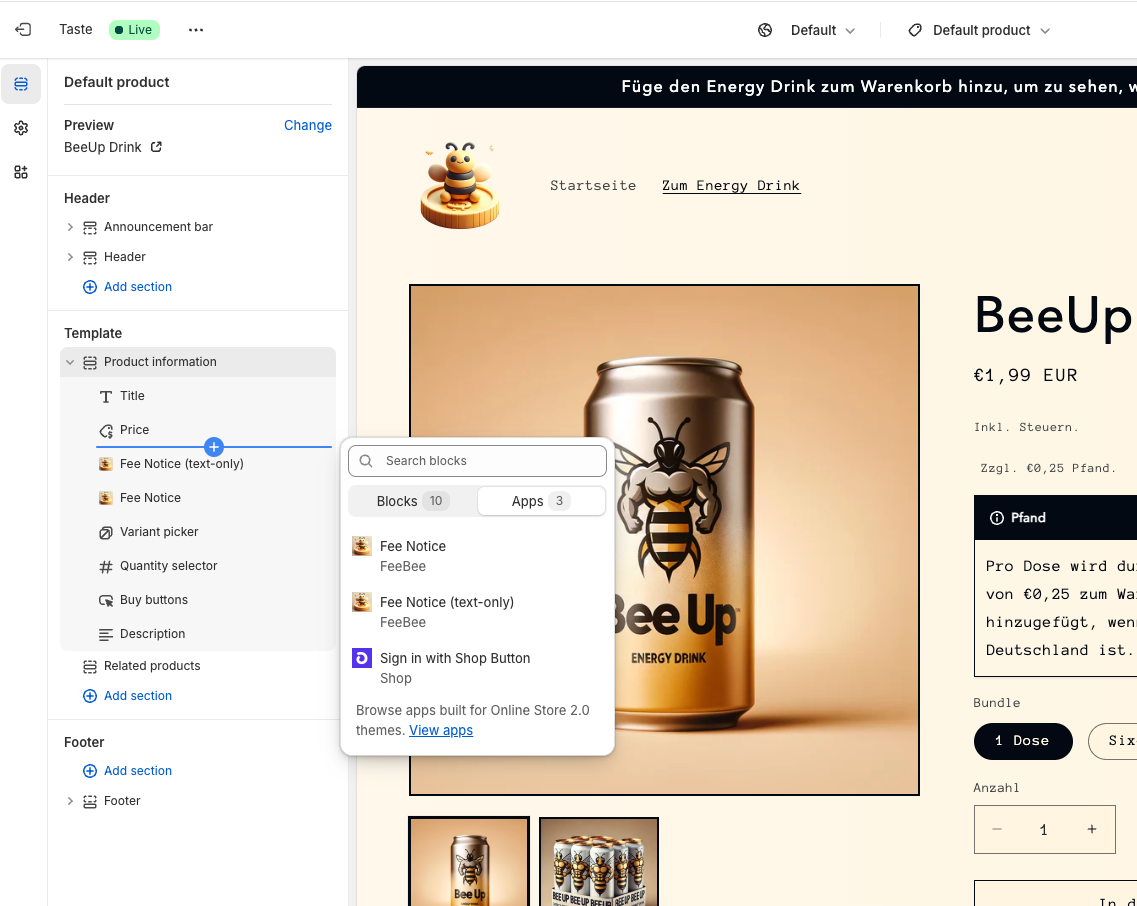
Click “Add block” or “Add section” depending on where you want the fee notice to appear.
Under Apps, select either:
- Fee Notice
- Fee Notice (Text Only)
- Position the block where you want it to appear on the product page.
- Customize the text and appearance in the right-hand sidebar.
- Click Save to publish your changes.
You can preview the notice live in the Theme Editor. The block will be shown for all products in the editor, but on the live store, it will only appear for products that have an active fee assigned.
Changing the Block in Other Themes or Templates
If you are using multiple themes or product templates, you will need to repeat the process for each one. You can add the block to any product template and place it wherever you prefer.
To access the Fee Notice block after onboarding, go back to the Theme Editor and follow the same steps under the Apps section. There is no need to reinstall the app or go through onboarding again.
Notes on Display Logic
- The notice will only be shown on live product pages if the product has a fee assigned through FeeBee.
- In the Theme Editor preview, the notice will appear on all product pages so you can test positioning and styling.